Headroom · Guide
Control your Mac from iPhone Duo
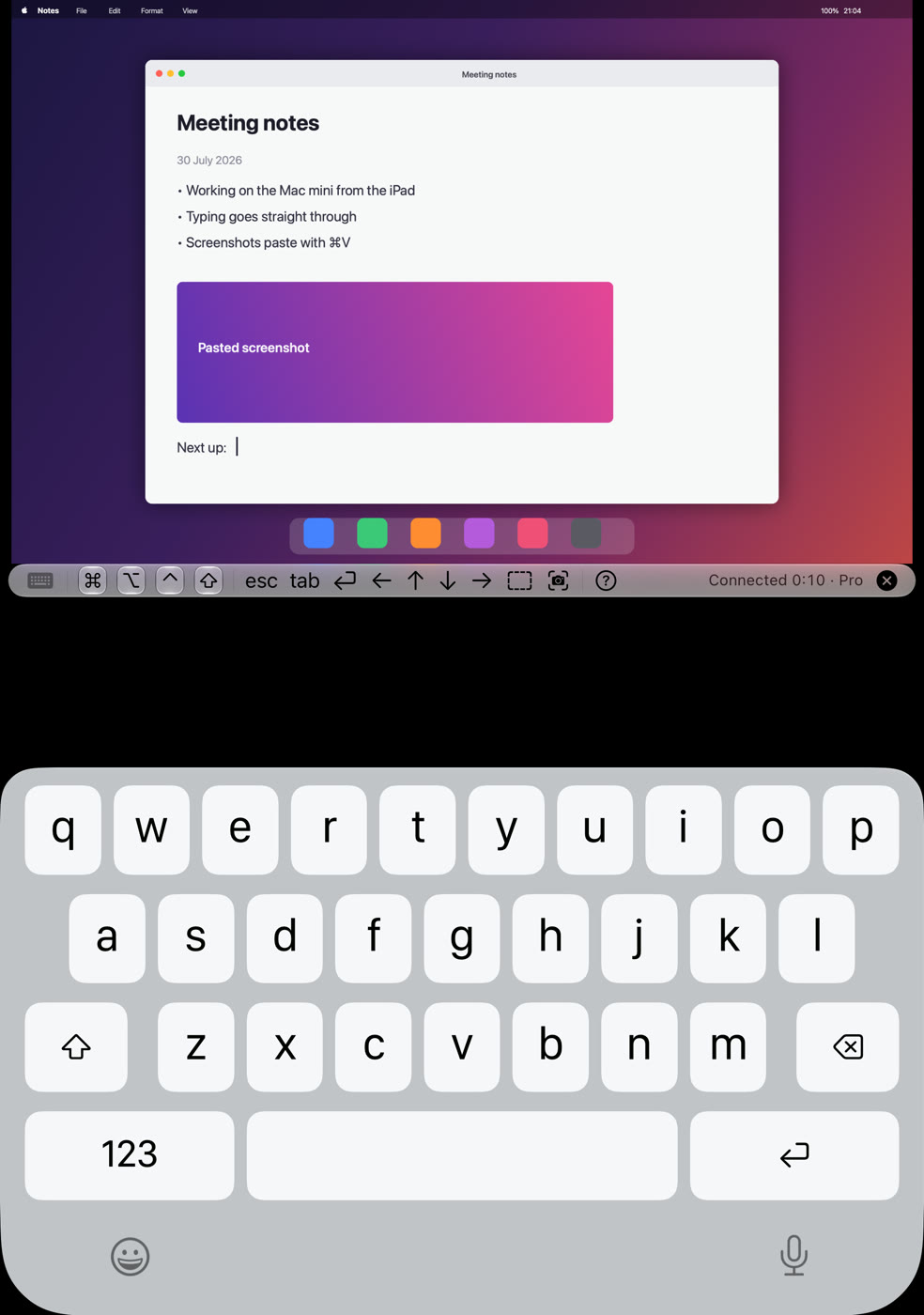
Half open like a laptop: the Mac on the upper screen, the keyboard on the lower one.
Fold iPhone Duo half open and it takes the shape of a laptop. Headroom uses that shape: your Mac's screen on the upper display, a keyboard on the lower one. The Mac you left at your desk is now in your pocket.
There is nothing to install on the Mac. Turn on the Screen Sharing built into macOS and Headroom connects to it. No account, no server of ours — the screen and your input travel only between your own devices.
What you need
- An iPhone Duo with Headroom from the App Store.
- The Mac you want to control, with Screen Sharing turned on (step 1).
- The same Wi‑Fi. For use away from home, see “Away from home” below.
Setup
- 1
Turn on Screen Sharing on the Mac
On the Mac, open System Settings › General › Sharing and turn on Screen Sharing. You will sign in with a user account on that Mac (recommended). If you prefer a separate VNC password instead, tap the ⓘ next to Screen Sharing to set one.
- 2
Open Headroom on iPhone Duo
On the same Wi‑Fi, your Mac appears under “Macs on your network”. Tap it and sign in with the Mac's user name and password.
If the Mac is not listed, tap + in the top right to open Add a connection, enter the Mac's host name or IP address, port 5900 and the user name, and save.
- 3
Fold it half open
Once connected, fold the Duo half open like a laptop. The Mac is on the upper screen, the control bar just above the fold, and the keyboard on the lower screen. The keyboard comes up by itself when you fold, and stays when you open it flat again.
- 4
Work
Tap and drag on the upper screen for the mouse, type on the lower screen. The control bar holds ⌘, ⌥, ⌃ and ⇧, so Mac shortcuts work as they do on the Mac.
Change the pose
Open the Duo differently and Headroom changes with it. Nothing is drawn across the fold.
Half open
The Mac on the upper screen, the keyboard on the lower one. The pose you will use most.
Closed
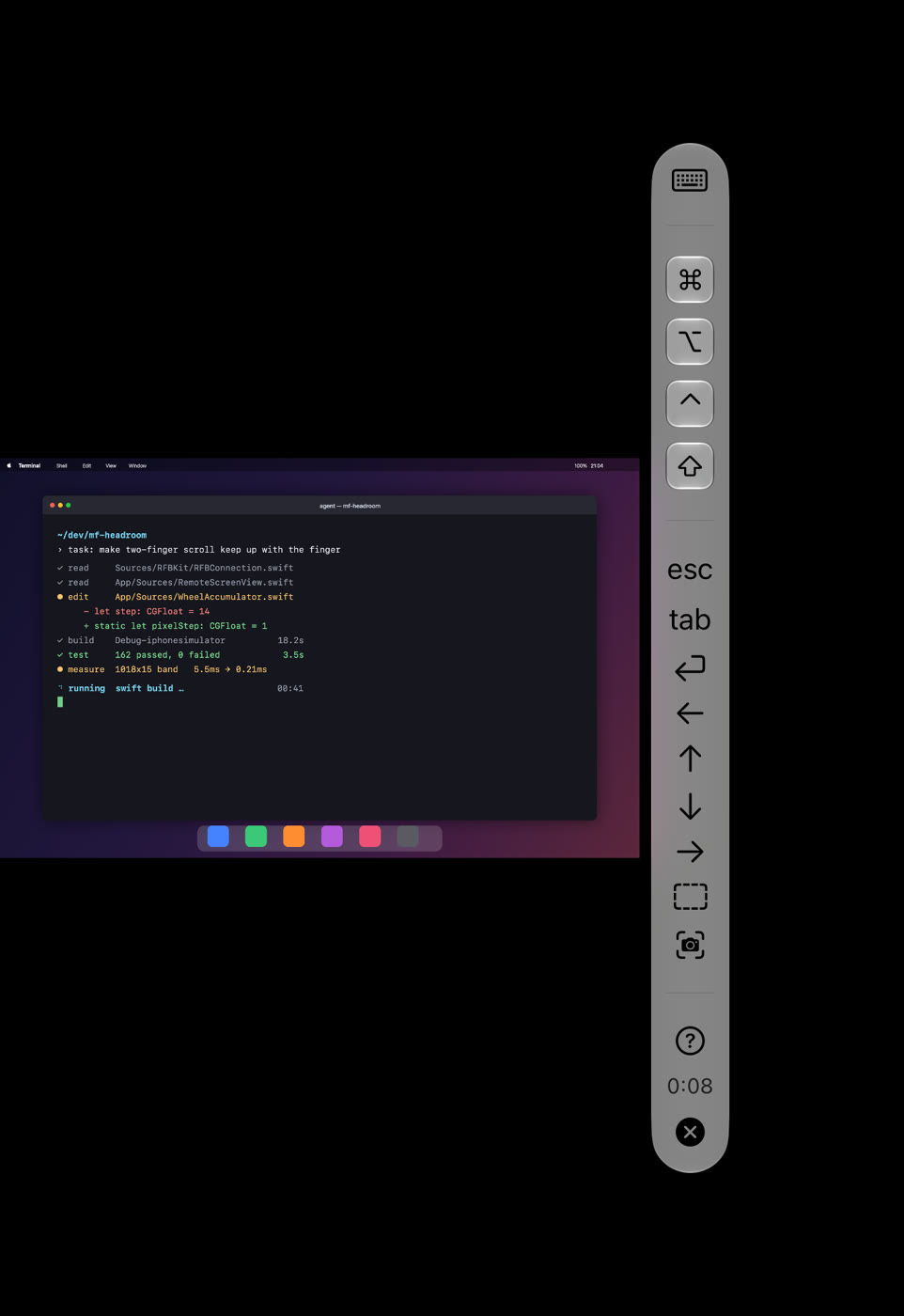
The outer display works on its own, with the control bar down the side so your Mac gets the full height.
Fully open
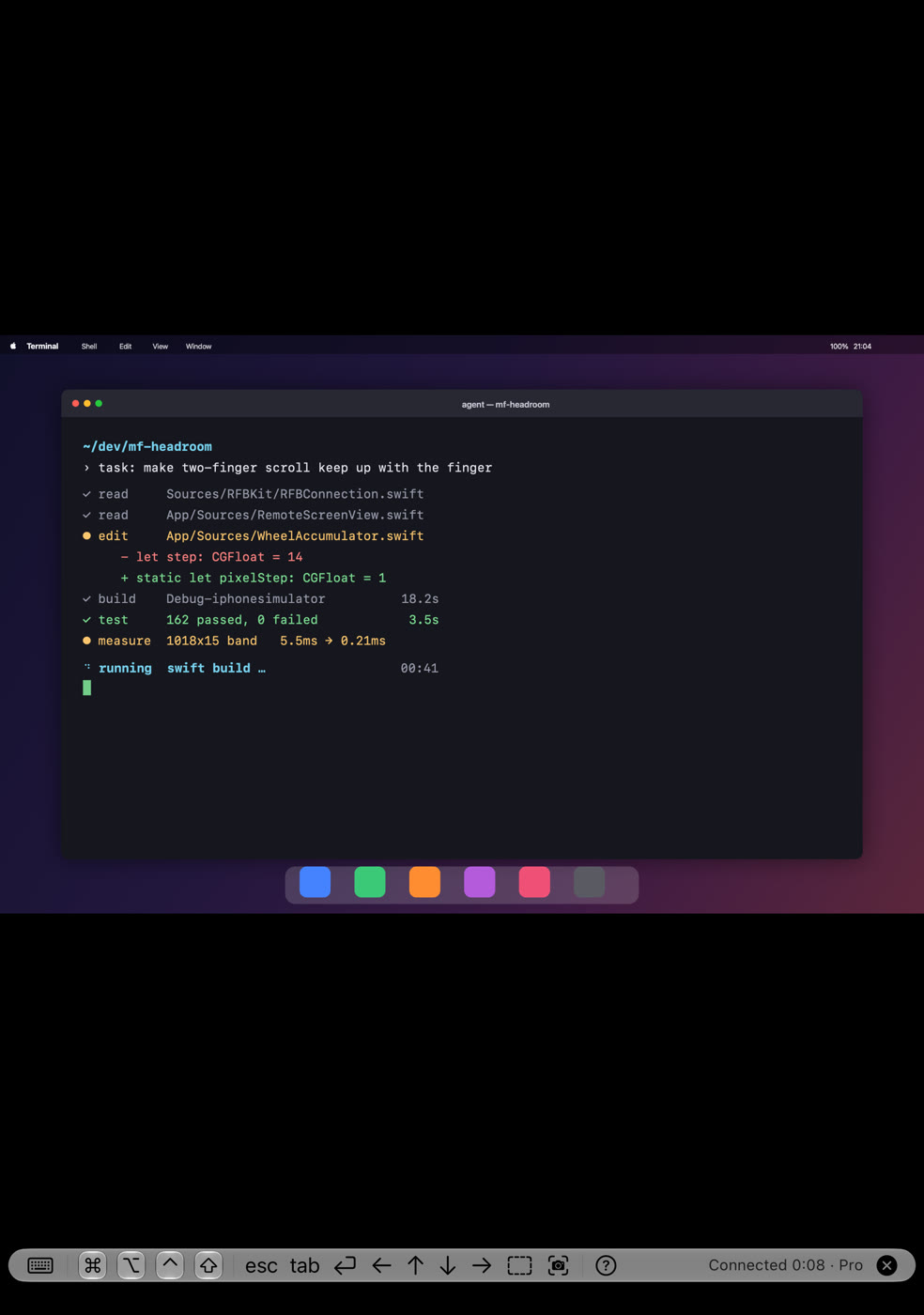
Your Mac fills the inner display with the controls along the bottom. Held like a book, the control bar moves to the side.
Good to know
With a hardware keyboard
Connect a Bluetooth or other hardware keyboard in the laptop pose and the whole lower screen becomes a control panel with large keys: letters on the keyboard, modifiers and arrows on the lower screen.
One app for iPhone, iPad and Mac
Headroom reaches your Mac from an iPhone, an iPad or another Mac. On a day without the Duo, open the same saved connection from an iPad or a Mac.
17 languages
The screens and the help come in English (US and UK), Japanese, Chinese (Traditional and Simplified), Korean, German, Spanish, French, Italian, Portuguese (Brazil and Portugal), Dutch, Swedish, Danish, Norwegian and Finnish.
Away from home
To reach the Mac from outside your home or office, install Tailscale on both the Mac and the Duo. No port on your router is opened, and Screen Sharing is never exposed to the internet. The steps are in a separate guide.
Guide: using Headroom with Tailscale →Headroom is free for 3 minutes of connection per day. Headroom Pro is a one-time purchase (not a subscription) with unlimited connection time, and it is shared across iPhone, iPad and Mac on the same Apple Account.
Headroom is developed by MusicFlow. Mac, iPhone, iPad and macOS are trademarks of Apple Inc. Tailscale is a registered trademark of Tailscale Inc.